
How to Add YouTube Chapters from Premiere Pro (2026 Guide)
YouTube chapters are one of the easiest wins for any video creator. They boost watch time, make long videos easy to navigate, and can earn you extra real estate in Google and YouTube search results. Yet most editors still add them by hand — scrubbing the timeline, copying timecodes, and pasting them into the description one line at a time.
If you edit in Adobe Premiere Pro, there is a far faster way. This guide shows you how to add YouTube chapters from Premiere Pro using sequence markers, and how to export perfectly formatted timestamps in a single click.
What Are YouTube Chapters?
YouTube chapters split your video into labeled sections along the progress bar. Viewers can jump straight to the part they want, and YouTube surfaces the chapter list in search results and suggested videos — which makes chapters a small but real SEO boost.
For chapters to work, your timestamps must follow YouTube's rules:
- The first timestamp must be
0:00 - You need at least three chapters
- Each chapter must be at least 10 seconds long
- Timestamps must be listed in ascending order
A valid YouTube chapter list in your video description looks like this:
0:00 Intro
0:45 The Problem
2:30 Step-by-Step Walkthrough
6:10 Final Tips
8:20 Outro
If even one rule is broken, YouTube silently disables chapters for the entire video. That is why getting your timestamps exactly right matters.
The Slow Way: Writing Timestamps by Hand
The manual workflow looks like this:
- Scrub through your sequence in Premiere Pro
- Note the timecode every time a new section begins
- Convert Premiere's timecode into YouTube's
MM:SSformat - Type each line into your YouTube description
- Re-check every timestamp after any edit that shifts the timeline
It works, but it is slow and fragile. The moment you trim a clip near the start of your video, every timestamp after it is wrong — and you get to do the whole thing over again.
The Smart Way: Use Premiere Pro Sequence Markers
Premiere Pro already has a tool built for marking sections: sequence markers.
As you edit, drop a marker at the start of each section and name it:
- Move the playhead to where a new section begins
- Press M to add a sequence marker
- Double-click the marker and give it a name — "Intro", "Step 1", and so on
Now every chapter lives inside your project, on the timeline, where it belongs. Markers move and update naturally as your edit changes.
There is just one catch: Premiere Pro cannot export markers as YouTube chapters. Out of the box there is no "copy as YouTube chapters" button — which is exactly where most editors get stuck and fall back to typing timestamps by hand.
Recommended Plugin
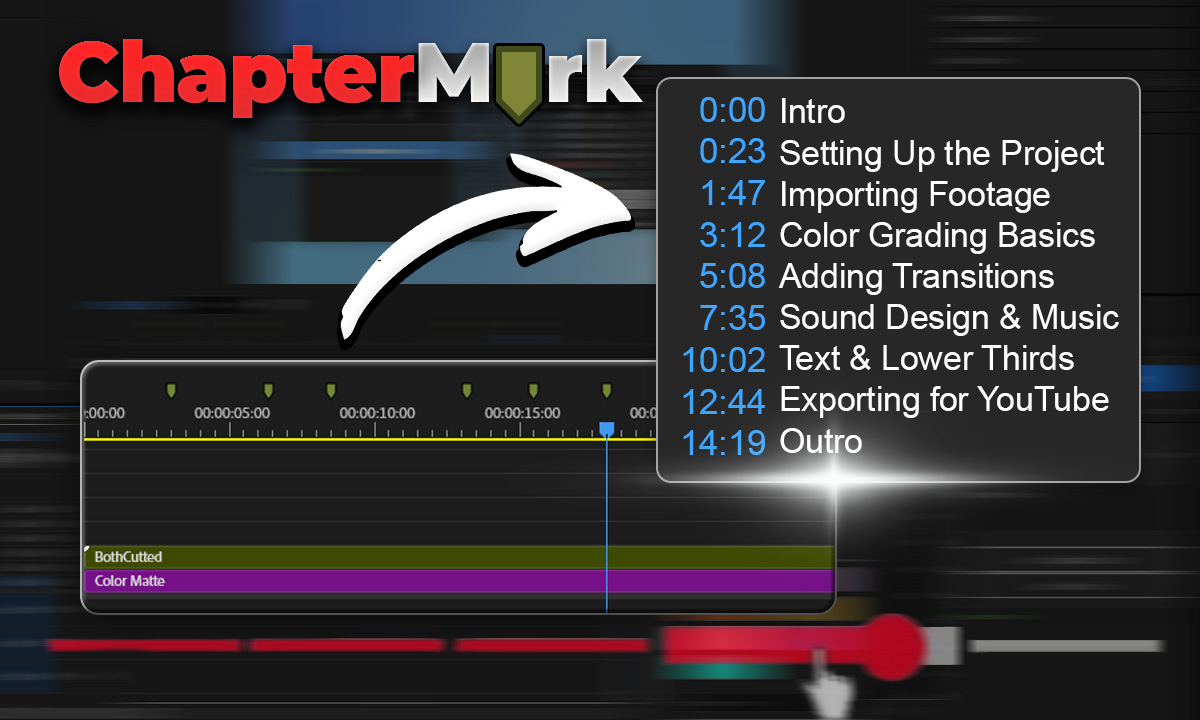
ChapterMark
Export Premiere sequence markers as YouTube chapters, CSV, JSON, or podcast chapters in one click.
The One-Click Way: Export Markers as YouTube Chapters
ChapterMark is a Premiere Pro extension that turns your sequence markers into a ready-to-paste YouTube chapter list. Instead of reading timecodes off the timeline, you simply:
- Add and name your markers as you edit, just like above
- Open ChapterMark inside Premiere Pro
- Click export and copy a perfectly formatted chapter list
ChapterMark reads every marker in your sequence, converts the timecodes into YouTube's MM:SS format automatically, and guarantees the first entry starts at 0:00 so YouTube always accepts your chapters. It also exports to CSV, JSON, and podcast-style chapters, so the same markers work for YouTube, Spotify, and Apple Podcasts.
Because it pulls straight from your markers, you can re-export any time your edit changes — no manual recalculation, no broken timestamps.
How to Add the Chapters to Your YouTube Video
Once you have exported your chapter list:
- Upload or edit your video in YouTube Studio
- Open the Description field
- Paste your chapter list, making sure the first line is
0:00 - Save — YouTube automatically detects the timestamps and adds chapters to the progress bar
Give it a few minutes after publishing for the chapters to appear.
Tips for Better YouTube Chapters
- Keep titles short and descriptive. "Color Grading" beats "the part where I do the color".
- Front-load keywords. Chapter titles are indexed by YouTube, so a relevant keyword early in the title can help discovery.
- Do not over-segment. Five to eight chapters is plenty for most videos.
- Build from your script. If you outline before you shoot, drop your markers straight from that outline as you edit.
Final Thoughts
YouTube chapters take a video from "fine" to "polished", and they directly support watch time — the metric YouTube rewards most. The trick is to stop treating them as a post-export chore and start building them into your edit with sequence markers.
Add markers as you cut, export them with ChapterMark, and paste the result into your description. What used to take ten minutes of scrubbing becomes a single click.
Recommended Posts
10 After Effects Tricks That Will Save You HOURS
Most beginner After Effects users waste time doing things manually that can be automated or simplified. These are practical tricks that speed up real workflows.

How to Preview TikTok & Reels Safe Zones in Premiere Pro
Stop guessing where your text gets cut off. Learn how to preview exactly how your video looks on TikTok, Reels, and Shorts before you export, directly inside Premiere.
5 After Effects Tips Every Beginner Should Know
Master the fundamentals of After Effects with these essential tips that will speed up your workflow and improve your animations from day one.