

How to Preview TikTok & Reels Safe Zones in Premiere Pro
You spent a lot of time getting your text placement just right. You export, upload to TikTok, and... the username overlaps your lower third. The caption covers your call-to-action. The follow button sits on top of your logo. And so on.
This happens because every platform has UI elements that cover parts of your video—and they're all in different places. TikTok's overlay is different from Reels, which is different from Shorts, which is different from Snapchat.
Here's how to preview all of them before you export.
The Problem: Platform UI Covers Your Content
When you edit in Premiere, you see a clean 9:16 frame. But your viewers don't. They see:
- TikTok: Username, caption text, share/comment/like buttons on the right, sound info at the bottom
- Instagram Reels: Similar layout but slightly different positioning, plus the navigation bar
- YouTube Shorts: Subscribe button, title overlay, different button placement
- Snapchat: Discover UI, story navigation, snap info
Each platform eats 15-25% of your visible frame with UI elements. If you don't account for this, your important content gets hidden.
Method 1: The Manual Way (Free but Tedious)
You can create overlay guides manually:
- Screenshot each platform's UI on your phone
- Import the screenshots into Premiere as reference layers
- Lower the opacity and position them over your timeline
- Check your text/graphics placement against each overlay
- Repeat for every platform you're posting to
This works, but it's slow. The overlays go out of date every time the platforms update their UI. And switching between platform previews means toggling layers on and off constantly.
Method 2: Use SafeFrame (One-Click Preview)
SafeFrame is a Free Premiere plugin that shows you exactly how your video will look on each platform inside your timeline.
How it works:
- Open the SafeFrame panel in Premiere
- Click the platform you want to preview (TikTok, Reels, Shorts, Snapchat)
- The overlay appears directly on your Program Monitor
- Move your text and graphics until they're in the safe zone
- Switch platforms with one click to check all of them
The overlays are accurate to the 2026 platform layouts and update when platforms change their UI.
Recommended Plugin
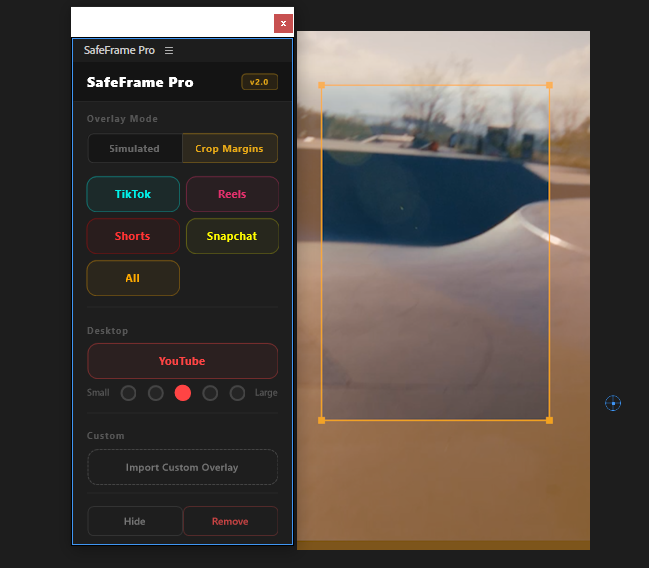
SafeFrame
Preview TikTok, Reels & Shorts safe zones directly in Premiere. Never hide text behind platform UI elements again.
What SafeFrame Pro Adds
The free version covers the basics — platform overlays for TikTok, Reels, Shorts, and Snapchat. SafeFrame Pro v2.0 adds:
- Crop Margins mode — colored margins show exactly where content gets cropped across different devices and aspect ratios
- Adaptive YouTube overlay — see how your video looks inside YouTube's actual player UI, not just the safe zones
- Snapchat overlay — now supported in both preview modes
- Custom overlays — import your own PNG overlays for brand-specific safe zones or client requirements
All overlays are updated for 2026 platform layouts.
Quick Safe Zone Tips for Short-Form Video
Regardless of which method you use, here are the rules:
Top 10% — Keep clear. Platform headers, story indicators, and close buttons live here.
Bottom 25% — The danger zone. Captions, usernames, sound info, and navigation bars all stack up here. Never put critical text in the bottom quarter.
Right 15% — Like, comment, share, and follow buttons on TikTok and Reels. Don't put anything interactive or important on the right edge.
Center 60% — The safe zone. This is where your key content should live. Text, logos, CTAs etc.
The 30-Second Workflow
Here's the fastest way to check your content across platforms:
- Edit your video as normal
- Before exporting, open SafeFrame
- Click through each platform: TikTok → Reels → Shorts → Snapchat
- If any text or graphics overlap with UI elements, nudge them into the safe zone
- Export with confidence
This takes 30 seconds and saves you from the "upload, check on phone, re-export" cycle that wastes 15+ minutes every time.
Platform safe zones aren't optional if you're creating short-form content professionally. Your viewers will never see the parts of your video that get covered by UI — so you need to see them before they do.
The manual overlay method works if you're just starting out. For a faster workflow, SafeFrame handles it in one click.
Got questions about safe zones or platform-specific issues? Email us at support@creovanta.com.
Recommended Posts

How to make Bouncing Ball animation with an Expression in AfterEffects (No Keyframes!)
In this short blog you will learn how to make ball bounce animation in AE with an expression. Easy. Includes Squashing effects too.
How to Add YouTube Chapters from Premiere Pro (2026 Guide)
Learn how to add YouTube chapters from Premiere Pro using sequence markers — and how to export perfectly formatted timestamps in one click.
10 After Effects Tricks That Will Save You HOURS
Most beginner After Effects users waste time doing things manually that can be automated or simplified. These are practical tricks that speed up real workflows.